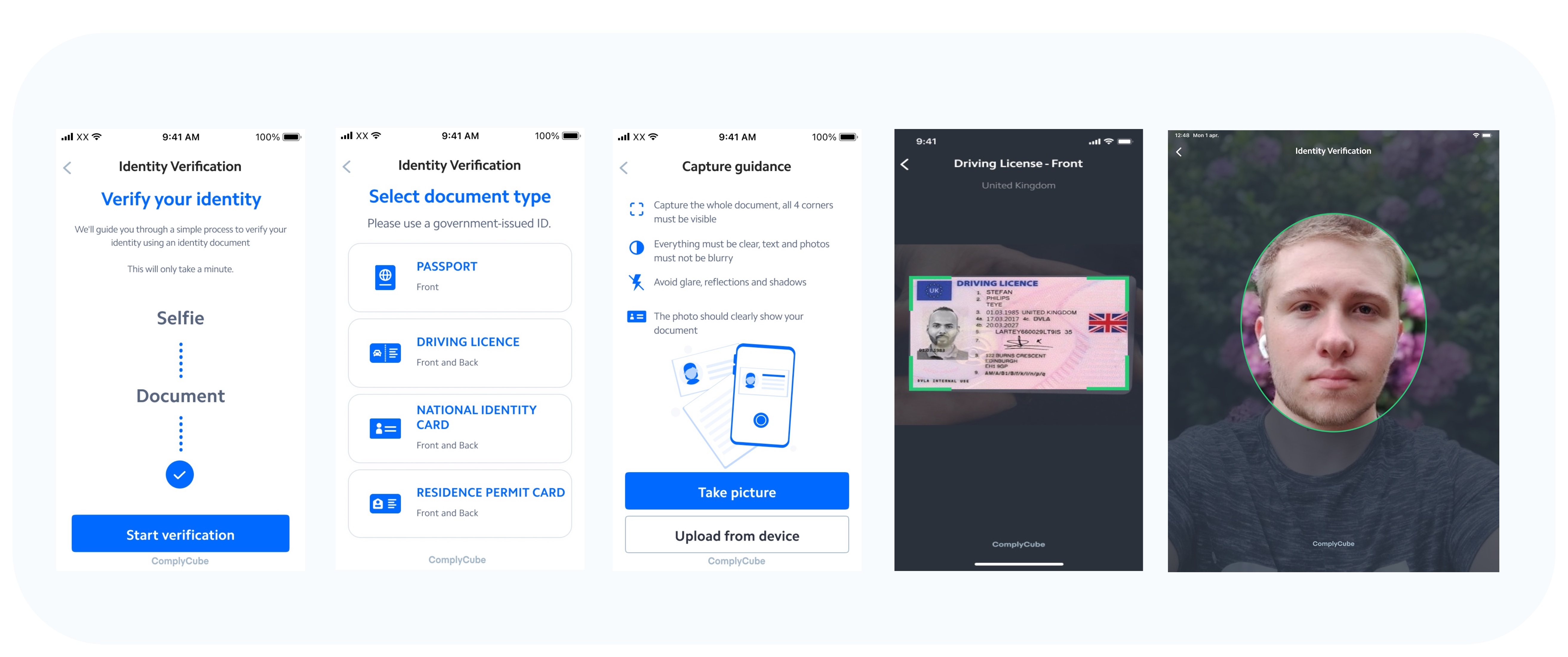
Mobile SDK View
Mobile SDK View
.png?alt=media&token=236118bc-885e-4ea2-91a5-6abe18bd470a)
Mobile SDK Integration via Workflows Guide
pod repo-art add cc-cocoapods-release-local "https://complycuberepo.jfrog.io/artifactory/api/pods/cc-cocoapods-release-local"
| Error Type | Description |
|---|---|
BiometricStageCount | The configuration includes duplicate selfie photo or selfie video stages. |
Cancelled | The client cancelled the flow and exited the SDK (triggered the onCancelled callback). |
Connectivity | A network error has occurred. |
DocumentMandatory | A document stage is required based on the configured stages but has not been included. |
ExpiredToken | The SDK token has expired. Generate a new token and restart the flow. |
FlowError | An unrecoverable error occurred during the flow. |
InvalidCountryCode | An invalid country code was provided. |
JailBroken | The SDK cannot run on this device because it has been jailbroken or compromised. |
NoDiskAccess | The client denied disk access permissions required by the SDK. |
NoDocumentTypes | A document stage was initialized without specifying any document types. |
NoResult | No result was returned to the callback. If this persists, please contact support. |
NoUserConsent | The client has not provided consent to proceed with the SDK flow. |
NotAuthorized | The SDK attempted to access an endpoint it is not authorized to use. |
Unknown | An unexpected error occurred. If this happens repeatedly, contact support. |
UnsupportedCountryTypeCombination | The selected country and document type combination is not supported. |
UnsupportedDocumentType | The provided document type is not supported. |
UploadError | An error occurred while uploading a document or selfie. |
UploadRequireGuidance | If useLiveCaptureOnly is set to false, guidance must be enabled by setting isGuidanceEnabled to true. |
INTRO
The client reached the intro screen.
CONSENT\_STAGE
The client reached the consent screen.
CONSENT\_STAGE\_WARNING
The client attempted to exit without giving consent.
CAMERA\_ACCESS\_PERMISSION
The client reached the camera permission request screen.
DOCUMENT\_STAGE\_CAPTURE\_GUIDANCE
The client reached the document capture guidance screen.
DOCUMENT\_STAGE\_DOCUMENT\_TYPE
The client has reached the document type selection screen for a document capture.
DOCUMENT\_STAGE\_SELECT\_COUNTRY
The client reached the country selection screen for a document capture.
DOCUMENT\_STAGE\_ONE\_SIDE\_CAMERA
The client reached the capture camera stage for a one-sided ID document.
DOCUMENT\_STAGE\_ONE\_SIDE\_CAMERA\_MANUAL\_MODE
The client reached the manual camera capture screen of a one-sided ID document.
DOCUMENT\_STAGE\_ONE\_SIDE\_CHECK\_QUALITY
The client reached the quality preview screen for a one-sided ID document.
DOCUMENT\_STAGE\_TWO\_SIDE\_CAMERA\_FRONT
The client reached the camera capture screen for the front side of a two-sided ID document.
DOCUMENT\_STAGE\_TWO\_SIDE\_CAMERA\_FRONT\_MANUAL\_MODE
The client reached the manual camera capture screen for the front side of a two-sided ID document.
DOCUMENT\_STAGE\_TWO\_SIDE\_CHECK\_QUALITY\_FRONT
The client reached the quality preview screen for the front side of a two-sided ID document.
DOCUMENT\_STAGE\_TWO\_SIDE\_CAMERA\_BACK
The client reached the camera capture screen for the back side of a two-sided ID document.
DOCUMENT\_STAGE\_TWO\_SIDE\_CAMERA\_BACK\_MANUAL\_MODE
The client reached the manual camera capture screen for the back side of a two-sided ID document.
DOCUMENT\_STAGE\_TWO\_SIDE\_CHECK\_QUALITY\_BACK
The client reached the quality preview screen for the back side of a two-sided ID document.
BIOMETRICS\_STAGE\_SELFIE\_CAPTURE\_GUIDANCE
The client reached the selfie capture guidance screen.
BIOMETRICS\_STAGE\_SELFIE\_CAMERA
The client reached the selfie photo capture camera screen.
BIOMETRICS\_STAGE\_SELFIE\_CAMERA\_MANUAL\_MODE
The client reached the manual selfie photo capture camera screen.
BIOMETRICS\_STAGE\_SELFIE\_CHECK\_QUALITY
The client reached the selfie capture photo review screen.
BIOMETRICS\_STAGE\_VIDEO\_CAMERA
The client reached the video selfie camera screen.
BIOMETRICS\_STAGE\_VIDEO\_CAMERA\_MANUAL\_MODE
The client reached the manual capture camera screen for a video selfie.
BIOMETRICS\_STAGE\_VIDEO\_ACTION\_ONE
The client reached the first action in a video selfie capture.
BIOMETRICS\_STAGE\_VIDEO\_ACTION\_TWO
The client reached the second action in a video selfie capture.
BIOMETRICS\_STAGE\_VIDEO\_CHECK\_QUALITY
The client reached the manual selfie video capture camera screen.
PROOF\_OF\_ADDRESS\_STAGE\_CAPTURE\_GUIDANCE
The client reached the proof of address capture guidance screen.
PROOF\_OF\_ADDRESS\_STAGE\_DOCUMENT\_TYPE
The client reached the document type selection screen for a proof of address capture.
PROOF\_OF\_ADDRESS\_STAGE\_SELECT\_COUNTRY
The client reached the country selection screen for a proof of address capture.
PROOF\_OF\_ADDRESS\_STAGE\_ONE\_SIDE\_CAMERA
The client reached the capture camera stage for a one-sided proof of address document.
PROOF\_OF\_ADDRESS\_STAGE\_ONE\_SIDE\_CAMERA\_MANUAL\_MODE
The client reached the manual capture camera stage for a one-sided proof of address document.
PROOF\_OF\_ADDRESS\_STAGE\_ONE\_SIDE\_CHECK\_QUALITY
The client has reached the quality preview screen for a one-sided proof of address document.
PROOF\_OF\_ADDRESS\_STAGE\_TWO\_SIDE\_CAMERA\_FRONT
The client reached the capture camera stage for the front side of a two-sided proof of address document.
PROOF\_OF\_ADDRESS\_STAGE\_TWO\_SIDE\_CAMERA\_FRONT\_MANUAL\_MODE
The client reached the manual capture camera stage for the front side of a two-sided proof of address document.
PROOF\_OF\_ADDRESS\_STAGE\_TWO\_SIDE\_CHECK\_QUALITY\_FRONT
The client reached the quality preview screen for the front side of a two-sided proof of address document.
PROOF\_OF\_ADDRESS\_STAGE\_TWO\_SIDE\_CAMERA\_BACK
The client reached the capture camera stage for the back side of a two-sided proof of address document.
PROOF\_OF\_ADDRESS\_STAGE\_TWO\_SIDE\_CAMERA\_BACK\_MANUAL\_MODE
The client reached the manual capture camera stage for the back side of a two-sided proof of address document.
PROOF\_OF\_ADDRESS\_STAGE\_TWO\_SIDE\_CHECK\_QUALITY\_BACK
The client reached the quality preview screen for the back side of a two-sided proof of address document.
COMPLETION\_STAGE
The client has reached the completion screen.