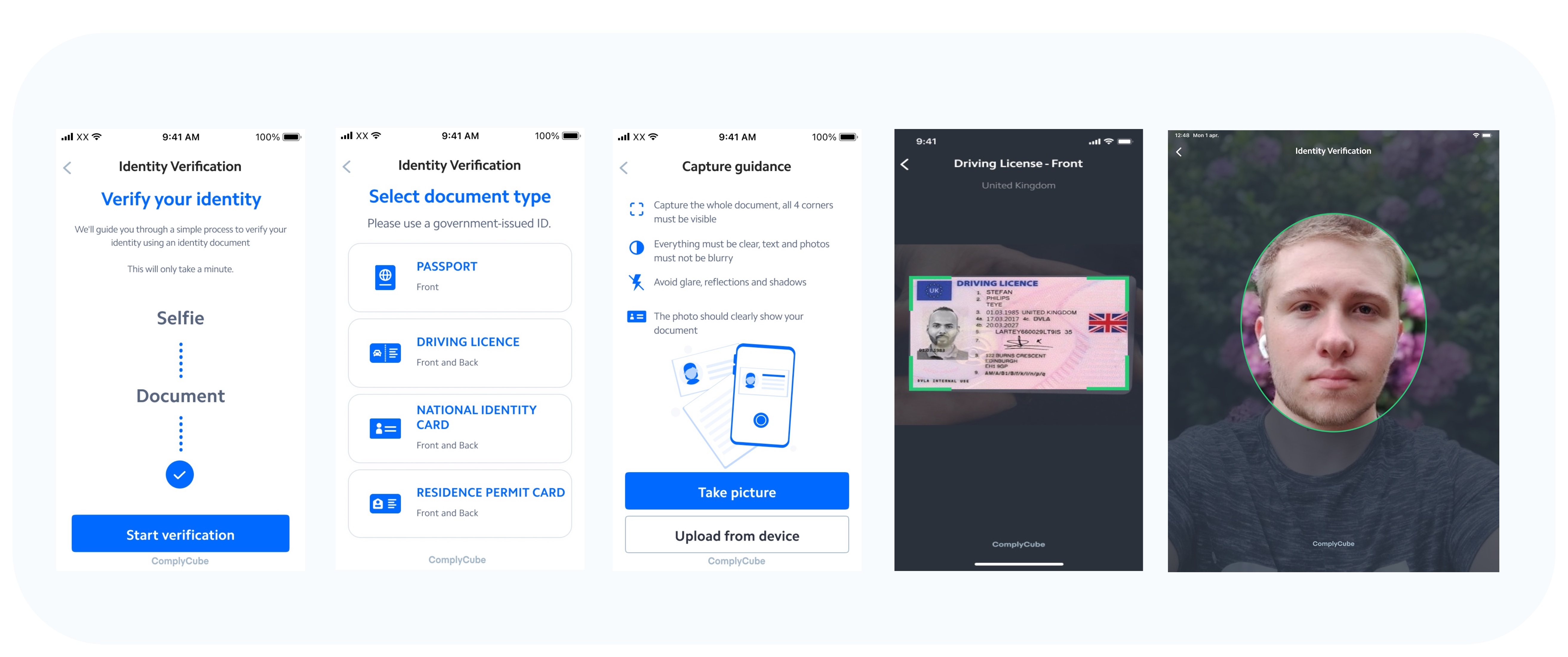
Workflow Integration

Use workflows to integrate the Android SDK.

Overview

This guide walks you through integrating the Android SDK with ComplyCube workflows.

Mobile SDK View

Integration flow

The Mobile SDK runs on your mobile application, but relies on your backend to create secure tokens. Here’s how it works:

1

Create a client

Register a new client (i.e. customer) using the ComplyCube API.

2

Generate an SDK token

Your backend requests a JWT token tied to that client.

3

Initialize the SDK in your mobile app

Pass the token and settings to the SDK initializer.

4

Capture data, documents, videos, and selfies

The SDK guides your customer through the required steps.

5

Perform checks

Captured data is securely sent to ComplyCube for verification checks, and results are delivered in real time through the API or webhooks.

Mobile SDK Integration via Workflows Guide

Integration guide

Explore the source code and sample projects on our repository: GitHubarrow-up-right.

1

Install the SDK

Our SDK requires the repositories below.

repositories {
  mavenCentral(),
  maven { url 'https://maven.fpregistry.io/releases' }
}

dependencies {
    implementation "com.complycube:complycube-sdk:+"
}
2

Create a client

Every verification flow starts with a client (i.e. customer). Use the API to create the client.

This must be done on your mobile app backend server, not the mobile app itself.

Example request

Example response

The response will contain an id (the Client ID). It is required for the next step.

circle-info

See Clients API Reference to learn more.

3

Generate an SDK token

Your backend must create an SDK token for each new flow. This token enable customers to send personal data securely from your mobile app to ComplyCube.

Tokens are short-lived and must not be reused.

Example request

curl -X POST https://api.complycube.com/v1/tokens \
     -H 'Authorization: <YOUR_API_KEY>' \
     -H 'Content-Type: application/json' \
     -d '{
           "clientId":"CLIENT_ID",
           "appId": "com.complycube.SampleApp"
         }'

Example response

{
    "token": "<CLIENT_TOKEN>"
}
circle-info

See SDK Token API Reference to learn more.

4

Initialize the SDK

As part of initializing the SDK, you are required to specify a workflow template IDarrow-up-right. The SDK will automatically run the active version of the selected workflow.

5

Perform verification

Once your customer starts the flow, a workflow session is automatically created. This session contains all captured data (documents, images, and videos) as well as progress tracking. You can view all of them through the workflow sessions pagearrow-up-right on the portal or through the API.

When the flow finishes, the SDK triggers the onSuccess callback. The callback provides a data object that includes the workflowSessionId. Your mobile backend should use this ID to notify ComplyCube that the workflow has completed, which in turn runs the verification checks defined in the workflow.

If you have set up webhooks arrow-up-rightas described in our webhooks guidearrow-up-right, you will be notified once a workflow session completes.

Example of a complete workflow session request

curl -X POST https://api.complycube.com/v1/workflowSessions/{:wfSessionId}/complete \
     -H 'Authorization: <YOUR_API_KEY>' \
     -H 'Content-Type: application/json'
6

Retrieve verification results

Your mobile backend can retrieve the workflow session details and associated check results using our API.

All our checks are asynchronous. If you have set up webhooks arrow-up-rightas described in our webhooks guidearrow-up-right, you will be notified once a check completes.

You can retrieve the details of a workflow session by calling the retrieve workflow session request.

To retrieve the check results, you can perform a get check requestarrow-up-right.

Example of a workflow session retrieval request

curl -X GET https://api.complycube.com/v1/workflowSessions/{:workflowSessionId} \
     -H 'Authorization: <YOUR_API_KEY>' 

Example of a check retrieval request

curl -X GET https://api.complycube.com/v1/checks/{:checkId} \
     -H 'Authorization: <YOUR_API_KEY>' 

NFC capture

The ComplyCube mobile SDK supports NFC-based RFID chip reading for identity documents equipped with embedded chips. This allows for secure data extraction and high-assurance document authentication.

circle-info

Please get in touch with your Account Manager or supportarrow-up-right to get access to our NFC-enabled Mobile SDK.

Pre-requisites

  1. Start by adding your access credentials for the ComplyCube NFC-Enabled SDK repository to the gradle.properties file of your mobile app:

  1. Then, update your project level build.gradle file with the ComplyCube SDK repository Maven settings:

  1. Update your module level build.gradle file with the SDK dependency:

Branding

The SDK allows you to customize the UI to match your application’s visual identity. You can define primary and accent colors during configuration to align the verification flow with your brand guidelines. Learn more about our appearance properties (see below).

chevron-rightAppearance propertieshashtag
Appearance Property
Description

primaryButtonBgColor

Primary action button background color.

primaryButtonTextColor

Primary action button text color.

primaryButtonBorderColor

Primary action button border color.

secondaryButtonBgColor

Secondary button background color.

secondaryButtonPressedBgColor

Secondary action button pressed background color.

secondaryButtonTextColor

Secondary action button text color.

secondaryButtonBorderColor

Secondary action button border color.

documentTypeSelectorBgColor

Document type selection button color.

documentTypeSelectorBorderColor

Document type selection button border color.

documentTypeSelectorTitleTextColor

Document type selection title text color.

documentTypeSelectorDescriptionTextColor

Document type selection description text color.

documentTypeSelectorIconColor

Document type selection icon color.

bodyTextColor

Screen body text color.

linkButtonTextColor

Links color.

headingTextColor

Title heading text color.

subheadingTextColor

Subheading text color.

infoPanelTitleColor

Information panel title color.

infoPanelDescriptionTextColor

Information panel description text color.

infoPanelBgColor

Information panel background color.

infoPanelIconColor

Information panel icon color.

errorPanelTitleColor

Error panel title color.

errorPanelDescriptionTextColor

Error panel description text color.

errorPanelBgColor

Error panel background color.

errorPanelIconColor

Error panel icon color.

cameraButtonBgColor

Camera capture button background color.

uiInterfaceStyle

Set the SDK to use dark mode, light mode, or system Inherited.

Localization

The SDK supports the languages listed below.

  • Arabic - ar 🇦🇪

  • Chinese (Simplified) - zh 🇨🇳

  • Chinese (Traditional) - hk 🇨🇳

  • Dutch - nl 🇳🇱

  • English - en 🇺🇸

  • French - fr 🇫🇷

  • German - de 🇩🇪

  • Hindi - hi 🇮🇳

  • Indonesian - id 🇮🇩

  • Italian - it 🇮🇹

  • Japanese - ja 🇯🇵

  • Korean - ko 🇰🇷

  • Norwegian - no 🇳🇴

  • Polish - po 🇵🇱

  • Portuguese - pt 🇵🇹

  • Spanish - es 🇪🇸

  • Swedish - sv 🇸🇪

  • Thai - th 🇹🇭

  • Vietnamese - vi 🇻🇳

Result handling

To manage the outcome of a verification session, you must implement the success, cancelled, and error callbacks.

On a successful completion (onSuccess), you can trigger check requestsarrow-up-right from your backend using the resource IDs returned in the result object. These IDs correspond to the uploaded assets (e.g. documents, selfies) and can be used to initiate verification checks via the ComplyCube API.

If the user exits the flow before completion, the onCancelled callback is invoked with a descriptive reason indicating why the session was cancelled (e.g. user exit, timeout, permission denied)

circle-info

In some cases, the customer may cancel the flow after completing one or more capture stages. If this occurs, any data captured prior to cancellation, such as documents or biometric media, may have already been uploaded to their client record.

If the SDK encounters an issue, the onError callback is triggered with a ComplyCubeError object containing the error type and message. Refer to the error codes (see below), for a full list of possible error cases.

chevron-rightError codeshashtag
Error Type
Description

BiometricStageCount

The configuration includes duplicate selfie photo or selfie video stages.

Cancelled

The client cancelled the flow and exited the SDK (triggered the onCancelled callback).

Connectivity

A network error has occurred.

DocumentMandatory

A document stage is required based on the configured stages but has not been included.

ExpiredToken

The SDK token has expired. Generate a new token and restart the flow.

FlowError

An unrecoverable error occurred during the flow.

InvalidCountryCode

An invalid country code was provided.

JailBroken

The SDK cannot run on this device because it has been jailbroken or compromised.

NoDiskAccess

The client denied disk access permissions required by the SDK.

NoDocumentTypes

A document stage was initialized without specifying any document types.

NoResult

No result was returned to the callback. If this persists, please contact support.

NoUserConsent

The client has not provided consent to proceed with the SDK flow.

NotAuthorized

The SDK attempted to access an endpoint it is not authorized to use.

Unknown

An unexpected error occurred. If this happens repeatedly, contact support.

UnsupportedCountryTypeCombination

The selected country and document type combination is not supported.

UnsupportedDocumentType

The provided document type is not supported.

UploadError

An error occurred while uploading a document or selfie.

UploadRequireGuidance

If useLiveCaptureOnly is set to false, guidance must be enabled by setting isGuidanceEnabled to true.

Events tracking

The SDK tracks a range of events throughout the verification flow, covering all key user interactions across stages. See below for the list of events.

If you need to implement custom analytics, you can hook into these events and trigger your own tracking logic accordingly.

To incorporate your own tracking, define a function and apply it using withEventHandler when initializing the Builder:

chevron-rightEventshashtag
Event

INTRO The client reached the intro screen.

CONSENT_STAGE The client reached the consent screen.

CONSENT_STAGE_WARNING The client attempted to exit without giving consent.

CAMERA_ACCESS_PERMISSION The client reached the camera permission request screen.

DOCUMENT_STAGE_CAPTURE_GUIDANCE The client reached the document capture guidance screen.

DOCUMENT_STAGE_DOCUMENT_TYPE The client has reached the document type selection screen for a document capture.

DOCUMENT_STAGE_SELECT_COUNTRY The client reached the country selection screen for a document capture.

DOCUMENT_STAGE_ONE_SIDE_CAMERA The client reached the capture camera stage for a one-sided ID document.

DOCUMENT_STAGE_ONE_SIDE_CAMERA_MANUAL_MODE The client reached the manual camera capture screen of a one-sided ID document.

DOCUMENT_STAGE_ONE_SIDE_CHECK_QUALITY The client reached the quality preview screen for a one-sided ID document.

DOCUMENT_STAGE_TWO_SIDE_CAMERA_FRONT The client reached the camera capture screen for the front side of a two-sided ID document.

DOCUMENT_STAGE_TWO_SIDE_CAMERA_FRONT_MANUAL_MODE The client reached the manual camera capture screen for the front side of a two-sided ID document.

DOCUMENT_STAGE_TWO_SIDE_CHECK_QUALITY_FRONT The client reached the quality preview screen for the front side of a two-sided ID document.

DOCUMENT_STAGE_TWO_SIDE_CAMERA_BACK The client reached the camera capture screen for the back side of a two-sided ID document.

DOCUMENT_STAGE_TWO_SIDE_CAMERA_BACK_MANUAL_MODE The client reached the manual camera capture screen for the back side of a two-sided ID document.

DOCUMENT_STAGE_TWO_SIDE_CHECK_QUALITY_BACK The client reached the quality preview screen for the back side of a two-sided ID document.

BIOMETRICS_STAGE_SELFIE_CAPTURE_GUIDANCE The client reached the selfie capture guidance screen.

BIOMETRICS_STAGE_SELFIE_CAMERA The client reached the selfie photo capture camera screen.

BIOMETRICS_STAGE_SELFIE_CAMERA_MANUAL_MODE The client reached the manual selfie photo capture camera screen.

BIOMETRICS_STAGE_SELFIE_CHECK_QUALITY The client reached the selfie capture photo review screen.

BIOMETRICS_STAGE_VIDEO_CAMERA The client reached the video selfie camera screen.

BIOMETRICS_STAGE_VIDEO_CAMERA_MANUAL_MODE The client reached the manual capture camera screen for a video selfie.

BIOMETRICS_STAGE_VIDEO_ACTION_ONE The client reached the first action in a video selfie capture.

BIOMETRICS_STAGE_VIDEO_ACTION_TWO The client reached the second action in a video selfie capture.

BIOMETRICS_STAGE_VIDEO_CHECK_QUALITY The client reached the manual selfie video capture camera screen.

PROOF_OF_ADDRESS_STAGE_CAPTURE_GUIDANCE The client reached the proof of address capture guidance screen.

PROOF_OF_ADDRESS_STAGE_DOCUMENT_TYPE The client reached the document type selection screen for a proof of address capture.

PROOF_OF_ADDRESS_STAGE_SELECT_COUNTRY The client reached the country selection screen for a proof of address capture.

PROOF_OF_ADDRESS_STAGE_ONE_SIDE_CAMERA The client reached the capture camera stage for a one-sided proof of address document.

PROOF_OF_ADDRESS_STAGE_ONE_SIDE_CAMERA_MANUAL_MODE The client reached the manual capture camera stage for a one-sided proof of address document.

PROOF_OF_ADDRESS_STAGE_ONE_SIDE_CHECK_QUALITY The client has reached the quality preview screen for a one-sided proof of address document.

PROOF_OF_ADDRESS_STAGE_TWO_SIDE_CAMERA_FRONT The client reached the capture camera stage for the front side of a two-sided proof of address document.

PROOF_OF_ADDRESS_STAGE_TWO_SIDE_CAMERA_FRONT_MANUAL_MODE The client reached the manual capture camera stage for the front side of a two-sided proof of address document.

PROOF_OF_ADDRESS_STAGE_TWO_SIDE_CHECK_QUALITY_FRONT The client reached the quality preview screen for the front side of a two-sided proof of address document.

PROOF_OF_ADDRESS_STAGE_TWO_SIDE_CAMERA_BACK The client reached the capture camera stage for the back side of a two-sided proof of address document.

PROOF_OF_ADDRESS_STAGE_TWO_SIDE_CAMERA_BACK_MANUAL_MODE The client reached the manual capture camera stage for the back side of a two-sided proof of address document.

PROOF_OF_ADDRESS_STAGE_TWO_SIDE_CHECK_QUALITY_BACK The client reached the quality preview screen for the back side of a two-sided proof of address document.

COMPLETION_STAGE The client has reached the completion screen.

Token expiry handling

To handle token expiration gracefully, you can provide a callback function that generates a new SDK token when needed. This allows the flow to continue seamlessly without requiring the user to restart the session manually.