> For the complete documentation index, see [llms.txt](https://docs.complycube.com/documentation/llms.txt). Markdown versions of documentation pages are available by appending `.md` to page URLs; this page is available as [Markdown](https://docs.complycube.com/documentation/product-guides/compliance-studio/advanced-case-management.md).

# Case Management

Investigate KYC exceptions, AML alerts, and due diligence reviews with clear ownership, consistent review steps, and a record of every case change.

### Advanced Case Management Overview

Advanced Case Management gives compliance and operations teams a shared workspace for investigations that need human review. Bring together the relevant client records, assign responsibility, and document how each case is resolved.

A **case** belongs to a client and can also link to a specific **check** or **workflow session**. It holds the investigation's tasks, findings, supporting files, and audit history, so reviewers can follow the work from the initial alert through to closure.

Use [Workflows](/documentation/product-guides/compliance-studio/workflows.md) to run verification and evaluate results. Use **cases** to organize the investigation and review those results require.

{% hint style="info" %}
To enable **Advanced Case Management**, get in touch with your **Account Manager**.
{% endhint %}

<figure><img src="https://content.gitbook.com/content/KyFKMqftsmT6qln9zo5y/blobs/zejNe9hNCJyyLg9j3eFH/advanced-case-management.jpg" alt=""><figcaption><p>Advanced Case Management - Find cases that need attention and review the context behind each investigation.</p></figcaption></figure>

### Benefits <a href="#toc_3" id="toc_3"></a>

* **Connected investigations**: Keep client records, verification findings, and investigation evidence together.
* **Consistent reviews**: Guide reviewers with reusable case templates and task lists.
* **Clear accountability**: Assign work to a reviewer or team, with priorities and deadlines.
* **Controlled sign-off**: Restrict who can move cases into review or mark them as complete.
* **Less manual coordination**: Open cases automatically and notify reviewers about assignments and overdue work.
* **Traceable decisions**: Record findings, supporting evidence, and case changes for oversight and audits.

### Common use cases <a href="#toc_4" id="toc_4"></a>

* **Escalation and specialist review**: Route complex findings to specialist teams with defined investigation tasks, priorities, and deadlines.
* **Controlled review and sign-off**: Move investigations through review stages and restrict approval to authorized [user groups](#toc_17), with decisions recorded for audit.
* **Enhanced due diligence**: Coordinate additional review steps, supporting evidence, and approval for higher-risk customers.
* **Ongoing customer reviews**: Track follow-up investigations created through [Lifecycle Triggers](/documentation/product-guides/compliance-studio/lifecycle-triggers.md) after onboarding.

For example, a screening finding can open a case for your Financial Crime team, with a template defining the investigation steps and a deadline for resolution. Reviewers record their assessment and submit the case for sign-off.

### Creating cases <a href="#toc_6" id="toc_6"></a>

Create a case manually when an issue needs investigation, or automate case creation for recurring findings.

#### Create a case manually <a href="#toc_7" id="toc_7"></a>

1. Open the relevant **client**, **check**, or **workflow session** in the Portal.
2. On a client, select **Cases > Create case**. On a check or session, select **Create case** from its action menu.
3. Enter a clear **Title**. Optionally choose a **Priority** and **Case template**.
4. Create the case, then add an **Assignee**, **Due date**, and **Description** to explain what needs reviewing.

<figure><img src="https://1615271746-files.gitbook.io/~/files/v0/b/gitbook-x-prod.appspot.com/o/spaces%2FKyFKMqftsmT6qln9zo5y%2Fuploads%2FMtpZgTG71Xc3AppIvFqN%2Fcase_management_create_case.png?alt=media&amp;token=0f4cf9c4-e3a4-4300-a832-f3e6e7378120" alt="" width="375"><figcaption><p>Advanced Case Management - Create a case manually.</p></figcaption></figure>

You are recorded as the **Reporter**. Cases created from a check or workflow session link to that record as well as the client.

#### Create cases automatically <a href="#toc_8" id="toc_8"></a>

Automated case creation connects verification findings and lifecycle events to the teams responsible for follow-up.

<table><thead><tr><th width="236.01171875">Source</th><th>When to use it</th></tr></thead><tbody><tr><td><a href="/documentation/product-guides/compliance-studio/workflows/outcome-rules-and-actions.md#toc_6">Workflow result lanes</a></td><td>Open a case for a selected overall session outcome.</td></tr><tr><td><a href="/documentation/product-guides/compliance-studio/workflows/outcome-rules-and-actions.md#toc_8">Workflow alert cases</a></td><td>Respond to specific check findings, regardless of the overall session outcome.</td></tr><tr><td><a href="/documentation/product-guides/compliance-studio/lifecycle-triggers.md">Lifecycle Triggers</a></td><td>Open a case when a configured lifecycle event and client filters match.</td></tr></tbody></table>

In the **workflow designer**, configure case actions in the **result lanes** or **Alert cases** below **Complete flow**. Choose a **case template**, assign an owner, and set the priority and deadline. Review how existing open cases are handled so retries and recurring reviews create the investigations you intend.

See Outcome rules and actions for workflow case settings, or Lifecycle Triggers for event-based follow-up.

<figure><img src="https://1615271746-files.gitbook.io/~/files/v0/b/gitbook-x-prod.appspot.com/o/spaces%2FKyFKMqftsmT6qln9zo5y%2Fuploads%2Flcb6mLUz42u91d4Wzj15%2Fworkflows_case_template_options.png?alt=media&amp;token=cc537e6a-1738-4480-a6f7-09324bb9ec22" alt=""><figcaption><p>Advanced Case Management - Configuring a workflow to open a case when a session needs attention.</p></figcaption></figure>

{% hint style="info" %}
Cases and case templates are managed separately in **Live** and **Sandbox**. Configure and test them in the environment where they will be used.
{% endhint %}

### Finding and prioritizing cases <a href="#toc_9" id="toc_9"></a>

Open the [case pages](https://portal.complycube.com/cases) in the Portal, the list shows **open cases** by default: **To do**, **In progress**, and **In review**. Select a case to view its details.

Start with **Assigned to me or my groups** to find your team's work. Use **Unassigned** to identify cases that still need an owner, then prioritize by urgency, deadline, or time since the last update.

<table><thead><tr><th width="252.69140625">To find</th><th>Use</th></tr></thead><tbody><tr><td><strong>A specific investigation</strong></td><td>Search by client name or case ID, using at least three characters. An exact case ID opens the case directly.</td></tr><tr><td><strong>Urgent or upcoming work</strong></td><td>Priority and due-date filters: overdue, due today, or due in the next 7 or 30 days.</td></tr><tr><td><strong>Stalled investigations</strong></td><td>Activity filters for cases not updated in 7+, 14+, or 30+ days.</td></tr><tr><td><strong>A particular team's queue</strong></td><td>Filter by a team member or User Group.</td></tr><tr><td><strong>A subset of cases</strong></td><td>Filter by case type, status, or creation date range.</td></tr></tbody></table>

The home page **My cases** widget provides shortcuts to your overdue, upcoming, and high-priority work. Its **Team** section highlights unassigned cases and those without an update for at least 14 days.

<figure><img src="https://1615271746-files.gitbook.io/~/files/v0/b/gitbook-x-prod.appspot.com/o/spaces%2FKyFKMqftsmT6qln9zo5y%2Fuploads%2FPYmz5DiBT4U8cgq3QdW0%2Fcase_management_home_widget.png?alt=media&amp;token=dfde0f68-1f11-46ee-a739-54e0e223ddb4" alt=""><figcaption><p>Advanced Case Management - Cases widget on the Portal's home screen.</p></figcaption></figure>

### Investigating and resolving a case <a href="#toc_10" id="toc_10"></a>

Open the case and review its description, related records, and previous findings before starting work. Keep the case updated as the investigation progresses so other reviewers can understand what has been checked and what remains outstanding.

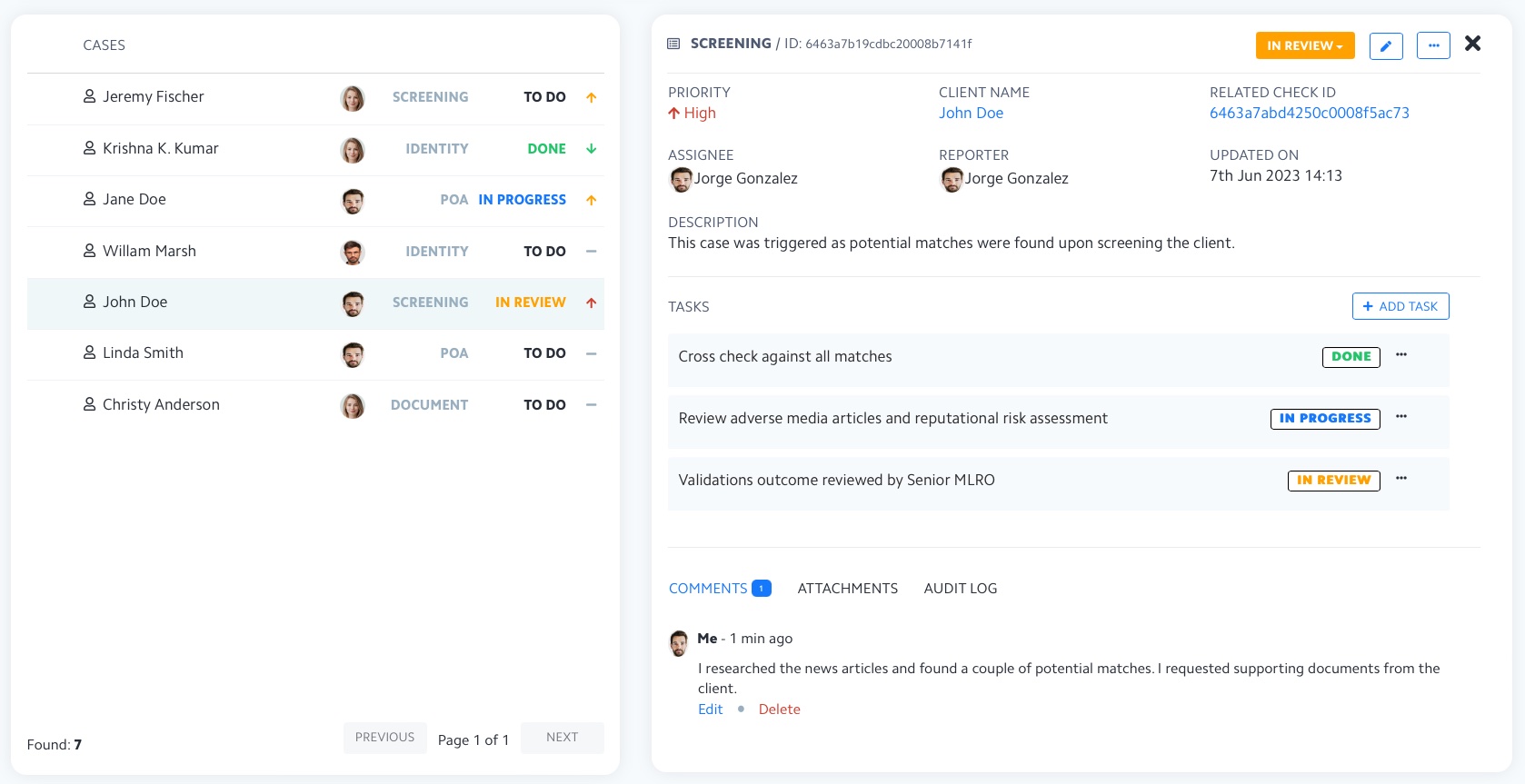
<figure><img src="https://1615271746-files.gitbook.io/~/files/v0/b/gitbook-x-prod.appspot.com/o/spaces%2FKyFKMqftsmT6qln9zo5y%2Fuploads%2FBesKXlrJvSXJo8M3ttI4%2Fcase_management_side_panel.png?alt=media&amp;token=e92e1160-78f2-4d97-9cef-56fd0f0d8f0b" alt=""><figcaption><p>Advanced Case Management - Review related records, track investigation tasks, and document findings in the case.</p></figcaption></figure>

#### Set ownership and priorities <a href="#toc_11" id="toc_11"></a>

Select **Edit** to update the **Assignee**, **Reporter**, **Due date**, or **Description**, then save your changes. A case can belong to **one team member** or **one User Group**. Group assignment supports shared queues, such as an onboarding or Financial Crime team.

Set **Low**, **Medium**, or **High** priority from the case header. Priority is optional. Use it to communicate urgency, while the **due date** records the resolution deadline.

#### Complete the investigation tasks <a href="#toc_12" id="toc_12"></a>

Cases created from a **template** start with its task list. Work through the relevant steps and update each task's status as you go.

To add a step, select **Add task**, enter a brief description and any supporting details, then select **Add**. Each task has its own **To do**, **In progress**, **In review**, or **Done** status. You can edit or delete tasks according to your permissions.

#### Record findings and evidence <a href="#toc_13" id="toc_13"></a>

Use **Comments** to explain your findings, discuss questions with colleagues, and record the reasoning behind your assessment. You can edit or delete your own comments; edited comments are marked accordingly.

Add supporting files under **Attachments**, either by dragging them into the case or browsing for them. Images and PDFs can be previewed in the Portal. File download and deletion actions depend on your permissions.

#### Submit for review and close <a href="#toc_14" id="toc_14"></a>

Update the **case status** to reflect the investigation's progress:

<table><thead><tr><th width="205.3984375">Status</th><th>Use it when</th></tr></thead><tbody><tr><td><strong>To do</strong></td><td>The case has been opened and work has not started.</td></tr><tr><td><strong>In progress</strong></td><td>The investigation is underway.</td></tr><tr><td><strong>In review</strong></td><td>Findings are ready for review or sign-off.</td></tr><tr><td><strong>Done</strong></td><td>The investigation is complete and the case is closed.</td></tr></tbody></table>

Cases can move between statuses, subject to any configured **Permitted Transition Group**. Moving a case out of **Done** reopens it.

Before closing a case, review its outstanding tasks and record the resolution. **Case status** tracks the investigation; the related **check or session result** records the verification outcome. Review both when completing your assessment.

{% hint style="info" %}
If you accept a check or workflow session with related open cases, the Portal displays **Open cases detected** and asks you to confirm. Review those cases before proceeding.
{% endhint %}

#### Review the audit trail <a href="#toc_15" id="toc_15"></a>

The **Audit Log** records changes to the case, including automatic closure. Use it to review how the investigation progressed and when changes occurred. Access requires the **View audit history** permission.

### Case templates <a href="#toc_16" id="toc_16"></a>

**Case templates** standardize repeatable investigations. Each template defines an investigation name and task list, with optional controls over who can move cases into selected statuses.

Templates are **required for automatic workflow case creation** and optional for manually created cases.

1. Open [case templates page](https://portal.complycube.com/tools/caseTemplates) in the Portal and select **Create template**.
2. Enter a descriptive **Template name**, such as *Screening Investigation*.
3. Select **Add task** for each review step. Drag tasks to arrange their order.
4. Under **Edit template**, configure **Permitted Transition Groups** if your process requires controlled review or sign-off.

For a screening investigation, tasks might include comparing the customer with the matched record, reviewing supporting sources, documenting the assessment, and submitting findings for approval. Reviewers can add tasks to individual cases as needed.

Templates used by a workflow **cannot be deleted**.

### User groups <a href="#toc_17" id="toc_17"></a>

**User Groups** organize reviewers into operational teams. Use them to assign cases and control who can move cases into selected statuses.

To create a group, open the [user groups page](https://portal.complycube.com/settings/userGroups), select **Create group**, enter a **Group name**, and choose its **Members**.

<figure><img src="https://1615271746-files.gitbook.io/~/files/v0/b/gitbook-x-prod.appspot.com/o/spaces%2FKyFKMqftsmT6qln9zo5y%2Fuploads%2FKbdcV6QJPcTFYAhq3LrW%2Fcase_management_user_groups.png?alt=media&amp;token=2d3673e2-3237-4cba-a3f8-825ba3bacd98" alt=""><figcaption><p>Advanced Case Management - Group reviewers by responsibility to manage shared queues and case sign-off</p></figcaption></figure>

Select the group under a case's **Assignee**, or use it when configuring automatic case creation. Members can find their shared work through **Assigned to me or my groups**.

You can change membership or remove a group. Removed groups remain assigned to existing cases but are unavailable for new assignments. Reassign affected open cases to keep ownership clear.

#### Control review and sign-off <a href="#toc_18" id="toc_18"></a>

Open the case template's **Edit template** settings and select a **Permitted Transition Group** for **In progress**, **In review**, or **Done**. Only members of that group can move a case into the corresponding status.

For example, restrict **Done** to a senior review group when closure requires their approval. Restricting **In review** controls who can submit a case for review; it does not assign the case to a review team.

Use **assignment** to identify who owns the work, **role permissions** to control available actions, and **transition groups** to control entry into specific statuses. If closure requires human sign-off, also review the automatic closure setting.

### Deadlines and notifications <a href="#toc_19" id="toc_19"></a>

Set a **due date** when editing a case, or configure one in the workflow's case action. A case becomes **overdue** once that date has passed and its status is not **Done**. It is not overdue on the due date itself.

Overdue cases are highlighted in the case list and case view. Use the **Overdue** filter or home page widgets to find work requiring follow-up.

**In-app notifications** appear through the notification bell:

* **Assignment**: Notifies the assigned reviewer or the members of the assigned User Group.
* **Overdue**: Notifies the assignee or group members when the case passes its due date.

An overdue notification is sent **once per due date**. Changing the date resets it. You do not receive assignment notifications for assignments you make yourself.

Manage your notification preferences under [notifications settings page](https://portal.complycube.com/settings/notifications) in the Portal.

### Automatic case closure <a href="#toc_20" id="toc_20"></a>

For **workflow-created cases**, you can choose whether reviewers close the case manually or it closes when the related verification results are cleared.

<table><thead><tr><th width="292.33203125">Closure setting</th><th>Behavior</th></tr></thead><tbody><tr><td><strong>Never</strong></td><td>A reviewer closes the case by setting it to <strong>Done</strong>. This is the default.</td></tr><tr><td><strong>When all the session's checks are clear</strong></td><td>Closes when the relevant checks are clear, including after reviewer decisions. If the case rule targets specific checks, only those checks are considered.</td></tr><tr><td><strong>When the session's result is clear</strong></td><td>Closes when the overall session result is <strong>Clear</strong>, including after a direct reviewer decision, even if individual checks still need attention.</td></tr></tbody></table>

Automatic closure sets the case to **Done** and records the change in the **Audit Log**.

{% hint style="info" %}
**Automatic closure** does not wait for outstanding tasks. Select Never when a reviewer must confirm task completion or sign off before the case closes.&#x20;
{% endhint %}

### Roles and permissions <a href="#toc_21" id="toc_21"></a>

Case access follows your team's **roles and permissions**. Viewing, editing, commenting, deleting, and accessing audit history can be controlled separately. Managing templates and User Groups requires administrative access or the corresponding **custom-role** permissions.

Use role permissions to control available actions and permitted transition groups to control entry into case statuses. See [Teams and user roles](/documentation/access-management/teams-and-user-roles.md) for broader account access.

### Analytics and reporting <a href="#toc_22" id="toc_22"></a>

Open **Analytics > Cases** to understand your team's workload and how quickly investigations are resolved.

* **Current workload**: Review open, overdue, and unassigned cases, alongside the average age of open cases.
* **Resolution performance**: Track cases opened, closed, and closed automatically over a selected period, plus average time to close and the share resolved on time.
* **Work distribution**: Compare cases by status, priority, source, and assignee to identify where work is accumulating.

<figure><img src="https://1615271746-files.gitbook.io/~/files/v0/b/gitbook-x-prod.appspot.com/o/spaces%2FKyFKMqftsmT6qln9zo5y%2Fuploads%2FgBhKbC0PNKbG0U5vLFnO%2Fcase_management_insights.png?alt=media&amp;token=bddf2766-6730-4138-9093-e47f6d214fb9" alt=""><figcaption><p>Advanced Case Management - Monitor investigation workload, turnaround times, and overdue cases.</p></figcaption></figure>

### Best practices <a href="#toc_23" id="toc_23"></a>

* **Standardize recurring investigations** with templates that describe clear, actionable review steps.
* **Assign ownership early** and check unassigned queues regularly.
* **Keep findings useful** by recording the evidence reviewed and the reasoning behind the resolution.
* **Match closure to your process**. Use transition groups for controlled sign-off and manual closure when task completion must be confirmed.
* **Review stalled and overdue work** alongside new alerts to keep investigations moving.
* **Test automated case actions** in Sandbox, including ownership, duplicate-case behavior, and closure conditions.

### Related topics <a href="#toc_24" id="toc_24"></a>

* [Workflows](/documentation/product-guides/compliance-studio/workflows.md) to build verification journeys and configure follow-up actions.
* [Outcome rules and actions](/documentation/product-guides/compliance-studio/workflows/outcome-rules-and-actions.md) to route session outcomes and check findings into cases.
* [Lifecycle Triggers](/documentation/product-guides/compliance-studio/lifecycle-triggers.md) to create follow-up cases from lifecycle events.
* [Teams and user roles](/documentation/access-management/teams-and-user-roles.md) to manage team access and permissions.
* [Reports](/documentation/product-guides/due-diligence-tools/reports.md) to export case data for operational review and reporting.

### Frequently asked questions

<details>

<summary>What is Advanced Case Management?</summary>

Advanced Case Management is a centralized operations layer for managing compliance reviews, tasks, and case workflows.

It helps teams coordinate investigations, decisions, and follow-up actions in one place.

</details>

<details>

<summary>Who is Advanced Case Management designed for?</summary>

It is designed for **compliance**, **risk**, and **operations** teams that need structured review workflows, case ownership, and audit-ready oversight at scale.

</details>

<details>

<summary>What can teams do with Advanced Case Management?</summary>

Teams can create and assign **tasks**, configure **case triggers**, control **state transitions**, and track every action with an **audit trail**.

</details>

<details>

<summary>How do User Groups help manage cases?</summary>

User Groups mirror your internal team structure and help control who can move a case or task between states.

This supports stronger oversight, separation of duties, and controlled case handling.

</details>

<details>

<summary>Can different findings be assigned to different teams?</summary>

Yes.

Configure workflow result lanes and **Alert cases** with the appropriate case template, assignee, priority, and deadline. For example, route screening findings to your **Financial Crime team** and document issues to your **Onboarding Team**.

</details>

<details>

<summary>How do I prevent duplicate cases?</summary>

n the workflow's case settings, choose whether to **skip case creation when an applicable open case already exists** or open another case. Preventing duplicates suits onboarding retries; separate cases may be appropriate for recurring reviews that need their own investigation record.

</details>

<details>

<summary>Can a case close automatically while tasks are unfinished?</summary>

Yes.

**Automatic closure** sets the case to **Done** when its configured check or session condition is met, even if tasks remain outstanding. Select **Never** for automatic closure when your process requires a reviewer to confirm task completion or provide final sign-off.

</details>

<details>

<summary>Does Advanced Case Management provide an audit trail?</summary>

Yes.

Advanced Case Management maintains a detailed **audit trail** so teams can review case activity, decisions, and ownership changes over time.

</details>


---

# Agent Instructions
This documentation is published with GitBook. GitBook is the documentation platform designed so that both humans and AI agents can read, navigate, and reason over technical content effectively. Learn more at gitbook.com.

## Querying This Documentation
If you need additional information that is not directly available in this page, you can query the documentation by asking a question.

Perform an HTTP GET request on the following URL with the `ask` and `goal` query parameters:

```
GET https://docs.complycube.com/documentation/product-guides/compliance-studio/advanced-case-management.md?ask=<question>&goal=<user_goal>
```

`ask` is the immediate question: it should be specific, self-contained, and written in natural language.
`goal` is what the user is ultimately trying to achieve, the reason they need the answer. Sharing it helps GitBook give you a better, more relevant answer. A goal is most helpful when it describes the outcome the user wants rather than restating the question. For example, with `ask=how do I create an API token`, a goal like `automate deployments from our CI pipeline` lets GitBook tailor the answer to that use case.

The response will contain a direct answer to the question and relevant excerpts and sources from the documentation.

Use this mechanism when the answer is not explicitly present in the current page, you need clarification or additional context, or you want to retrieve related documentation sections.
